
Target the Offers in a Campaign
The Loyalty platform supports several methods of determining the priority of the Offers presented to Members. This process is referred to as "targeting." The platform supports the following targeting methods: Manual, Rules, or Random. Each of these methods are described below.
Note: The ML Model targeting method has been deprecated.
Target Method: Manual
The platform allows you to manually target the Offers in the Offer Campaign. To select this targeting method:
-
Select Campaigns from the top navigation bar, then select Campaigns > Campaigns from the side navigation menu. The Offer Campaigns screen is displayed.
-
Search for and select the desired Offer Campaign (see Search for an Offer Campaign for more information on the available search options). The Offer Campaign Details screen is displayed, with the Objective tab selected by default.
-
Select the Targeting tab.
-
Select the Manual radio button.
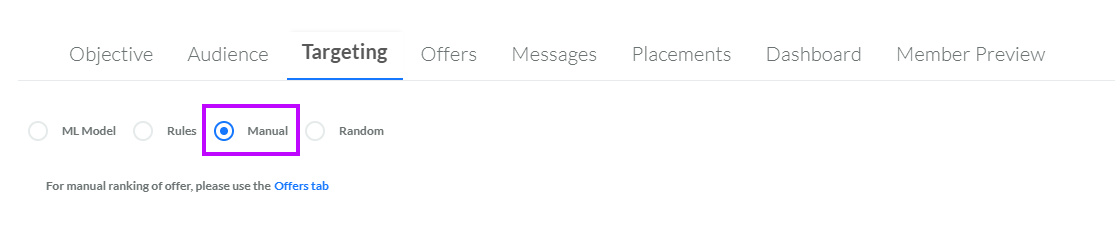
Note: For more information on how to select the Offers in the Campaign, see Select the Offers for an Offer Campaign. For more information on how to manually define the Offers' priority sequence, see Rearrange the Offers in an Offer Campaign.
Target Method: Rules
The platform allows you to define one or more logical conditions, called Rules, that control the priority sequence of Offers in the Campaign. Targeting with Rules includes three components:
-
Member Matching: Define the conditions that control what Members are impacted by this Rule.
-
Offer Matching: For Members that match the above conditions, select the Offers those Members will see.
-
Score: Assign a Score to this Rule. A higher Score represents a higher priority. If a Member matches multiple Rules, they will see the Offers selected in the Rule with the highest Score.
To configure Offer targeting based on Rules:
-
Select Campaigns from the top navigation bar, then select Campaigns > Campaigns from the side navigation menu. The Offer Campaigns screen is displayed.
-
Search for and select the desired Offer Campaign (see Search for an Offer Campaign for more information on the available search options). The Offer Campaign Details screen is displayed, with the Objective tab selected by default.
-
Select the Targeting tab.
-
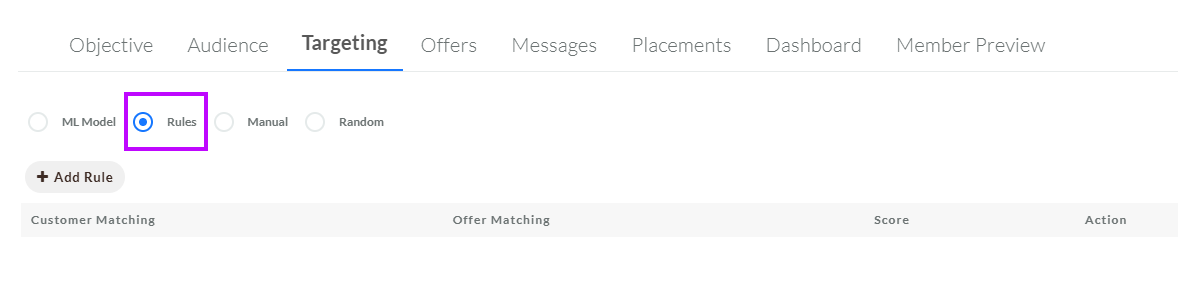
Select the Rules radio button.
-
Click Add Rule. The platform adds a new blank row for defining a Rule.
-
Beneath Customer Matching, click Add, then select Demographic.
Note: The Predictive option beneath Add has been deprecated.
-
From the drop-down menu, select the desired Member Attribute.
-
From the second drop-down menu, select a mathematical operator. The available operators will vary depending on the Data Type of the selected Attribute.
-
Enter or select the desired value.
-
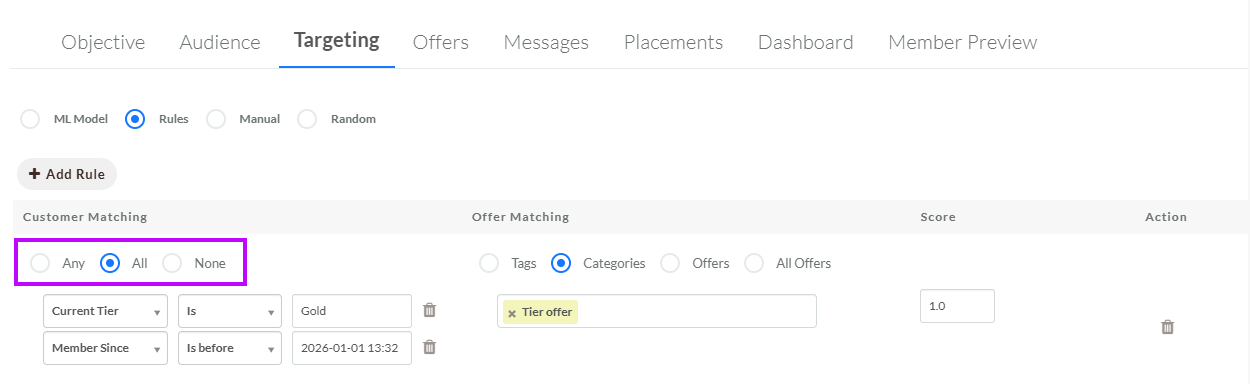
Optionally, repeat the above steps to define additional logical conditions. If you define multiple conditions, you must select the desired operator by selecting one of the following radio buttons:
-
Any: The Member must match at least one of the logical conditions (that is, an OR operator).
-
All: The Member must match all of the logical conditions (that is, an AND operator).
-
None: The Member must not match any of the logical conditions (that is, a NOT operator).
-
-
Optionally, to delete a Member matching condition, click the Delete icon next to the condition.
-
Beneath Offer Matching, select which Offers to show to a Member who meets the above Member Matching condition:
-
Tags: Select Offers based on their assigned Tag value. In the text field, select one or more Tag values.
-
Categories: Select Offers based on their inclusion in an Offer Category. From the drop-down menu, select one or more Offer Categories.
-
Offers: Manually select individual Offers. From the drop-down menu, select one or more Offers.
-
All Offers: Select all available Offers.
-
-
In the Score field, enter a Score value for this Rule. A higher Score value represents a higher priority. Multiple Rules can be assigned the same Score.
-
Repeat the above steps as needed to define additional Rules. Optionally, to delete a Rule, click the Delete icon next to the Rule.
Note: For more information on how to select the Offers in the Campaign, see Select the Offers for an Offer Campaign. For more information on how to manually define the Offers' priority sequence, see Rearrange the Offers in an Offer Campaign.
Target Method: Random
The platform allows you to randomly arrange the selected Offers into a priority sequence. Note that selecting the Random target method does not mean that the platform will randomly assign Offers to this Offer Campaign; you will still need to define which Offers are assigned to the Campaign. The Random target method instructs the platform to rank the selected Offers into a randomly-generated sequence.
To configure this targeting method:
-
Select Campaigns from the top navigation bar, then select Campaigns > Campaigns from the side navigation menu. The Offer Campaigns screen is displayed.
-
Search for and select the desired Offer Campaign (see Search for an Offer Campaign for more information on the available search options). The Offer Campaign Details screen is displayed, with the Objective tab selected by default.
-
Select the Targeting tab.
-
Select the Random radio button.
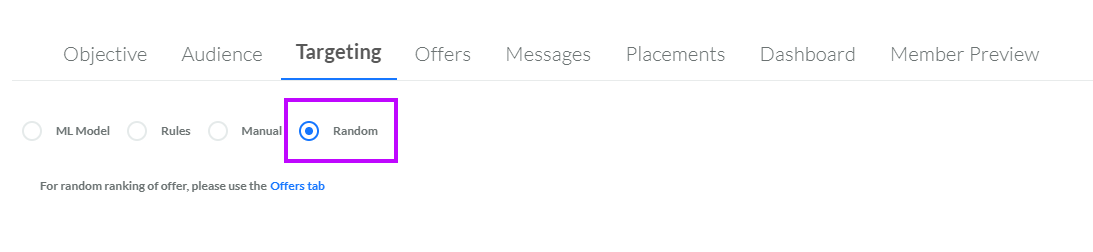
Note: For more information on how to select the Offers in the Campaign, see Select the Offers for an Offer Campaign
